

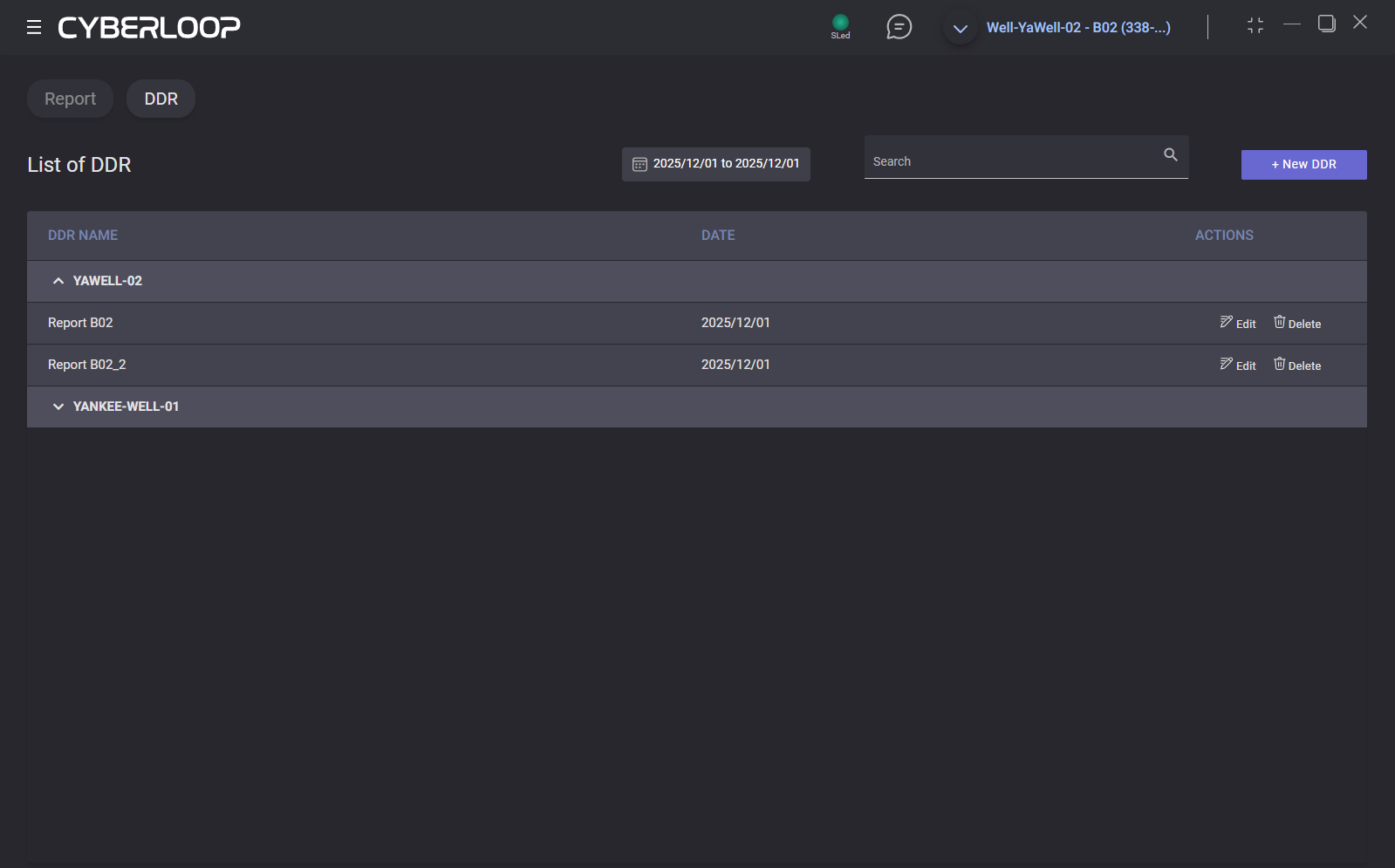
On the Reports tab, Daily Drilling report can be filled. A list of existing reports is presented on the DDR tab. Reports are grouped by Well. Click on the well name expands/collapse the list of the well reports.
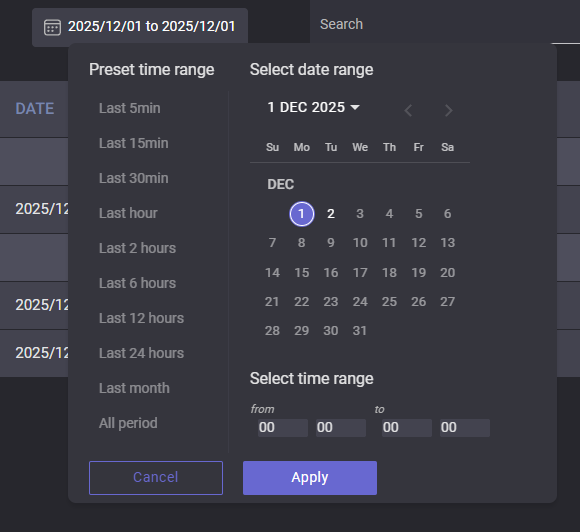
List of the reports can be filtered by the date. Click on the dates range on the top panel to expand the date picker. After selecting a date and time range and clicking on Apply button, the date picker will be closed and the reports list will be filtered.
To change an existing report, click on the Edit option next to it. Report will be opened in the edit mode.
To delete a report, click on the Bin icon next to it. After clicking on YES in the delete confirmation dialog, report will be removed.
New Report
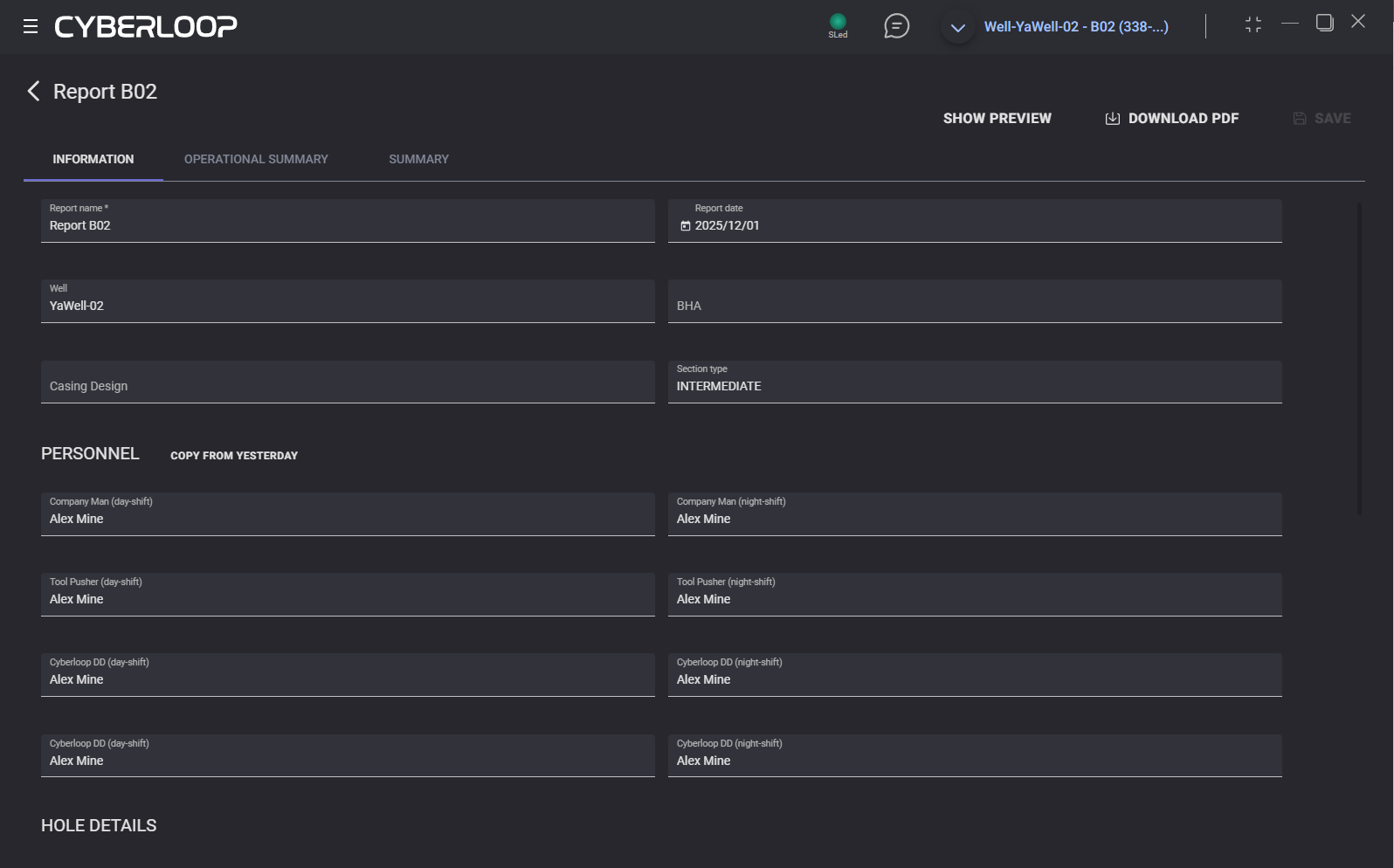
Click on New DDR opens new report editor. Filling report form has three tabs: Information, Operational Summary, Summary.
On the information tab General Information of the report should be provided: report date, well name, report name, personnel, hole details, casing details, BHA details. Personnel, Casing details, BHA details can be filled with data from yesterdays' report by clicking on Copy from yesterday option.
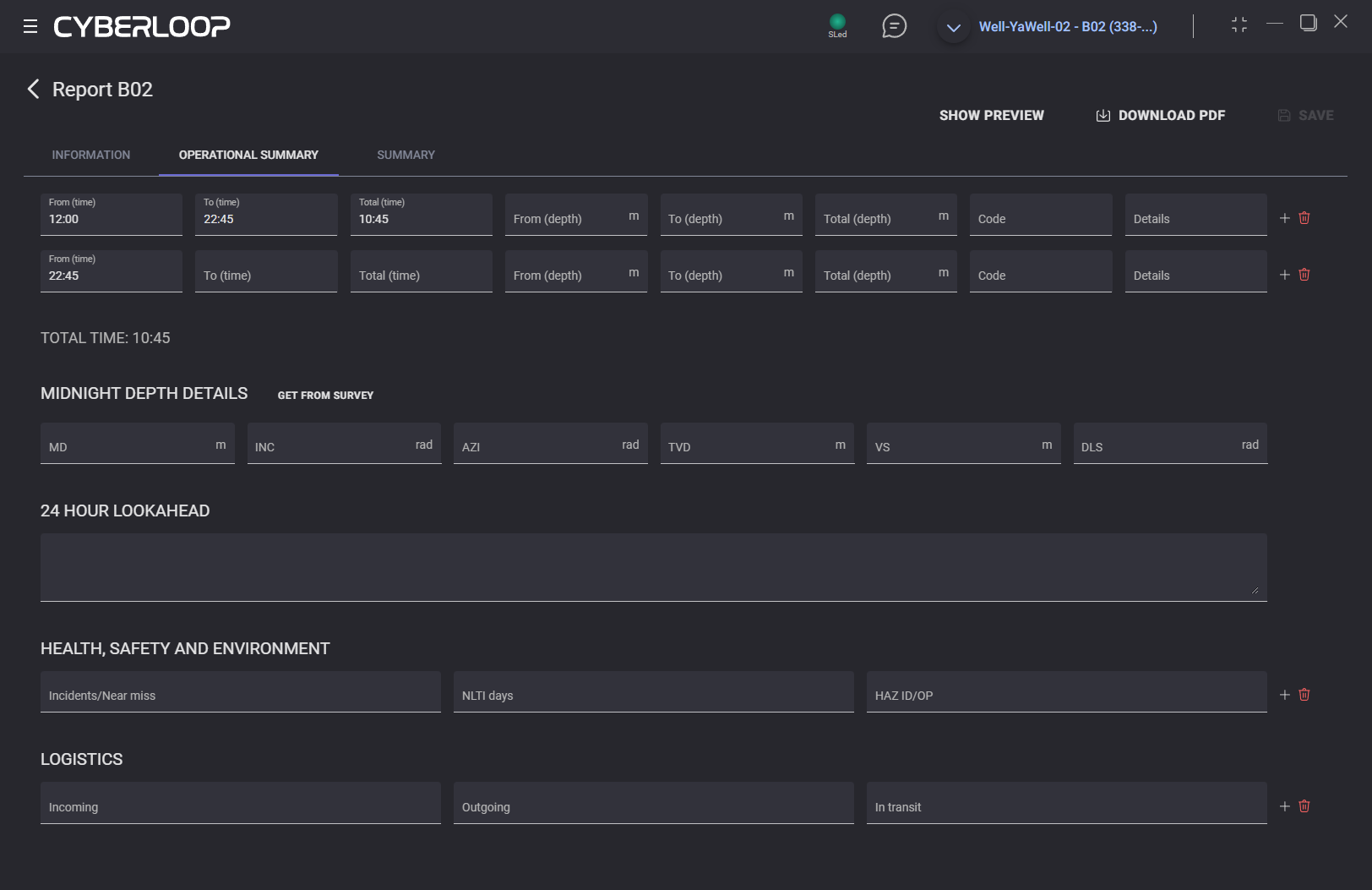
On the Operational summary tab displayed Operational details table, Midnight depth details, 24 hour lookahead, Health, safety and environment information, and Logistics information. New empty row can be added to the Operational details, Health, safety and environment, and Logistics tables by click on “+” button. To remove row from the table click on the bin icon next to it.
Midnight depth details values can be filled automatically by click on Get from survey option.
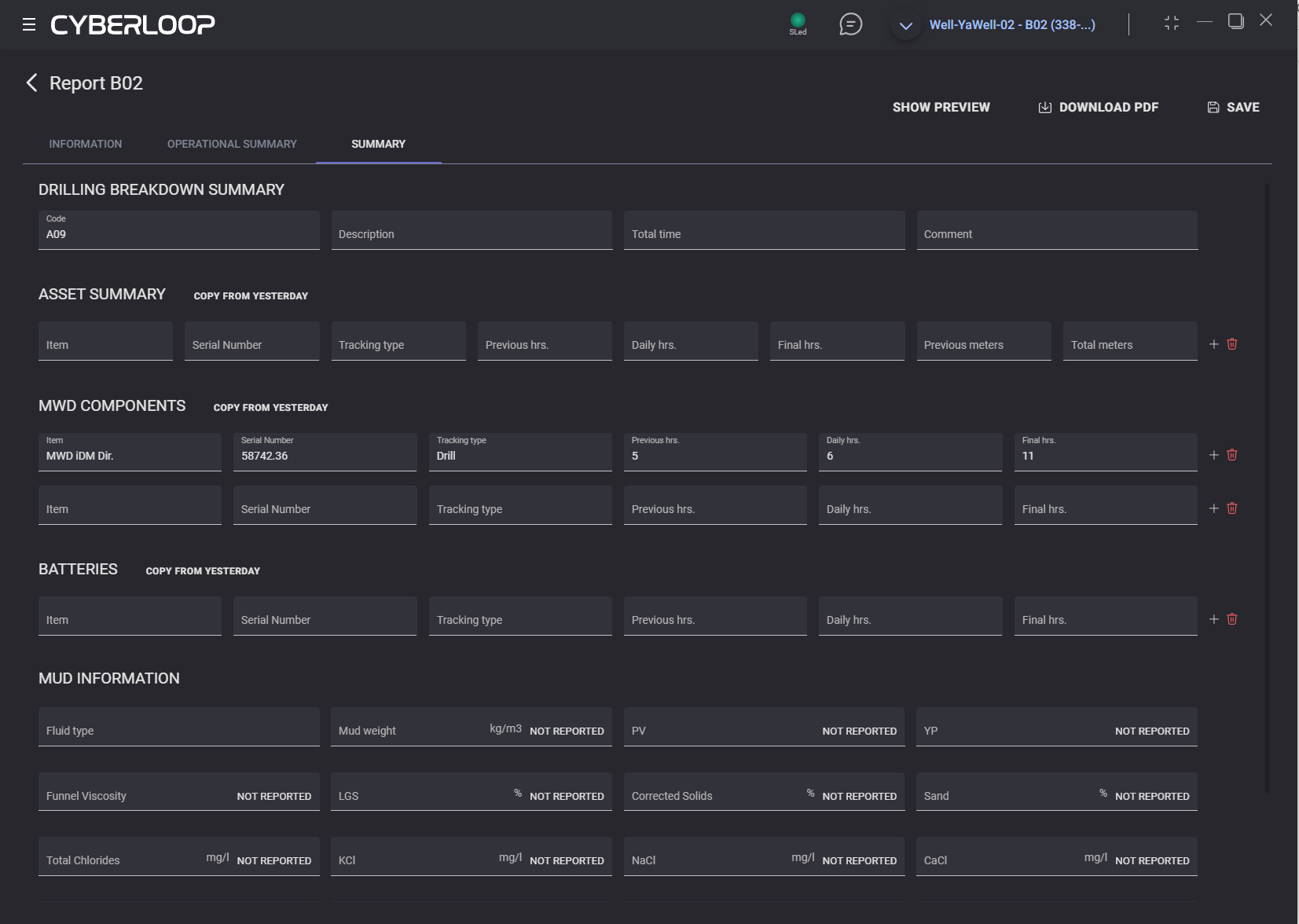
Summary tab contains Drilling breakdown summary, Asset summary, MVD components, Batteries and Mud information. Values in the Asset summary, MVD components, Batteries can fill with data from previous report by clicking on Copy from yesterday option.
Preview of the report can be displayed by click on Show preview option on top panel. Editor will be split into two parts with pdf preview and report editor. Data entered in the editor will be displayed on preview immediatly.
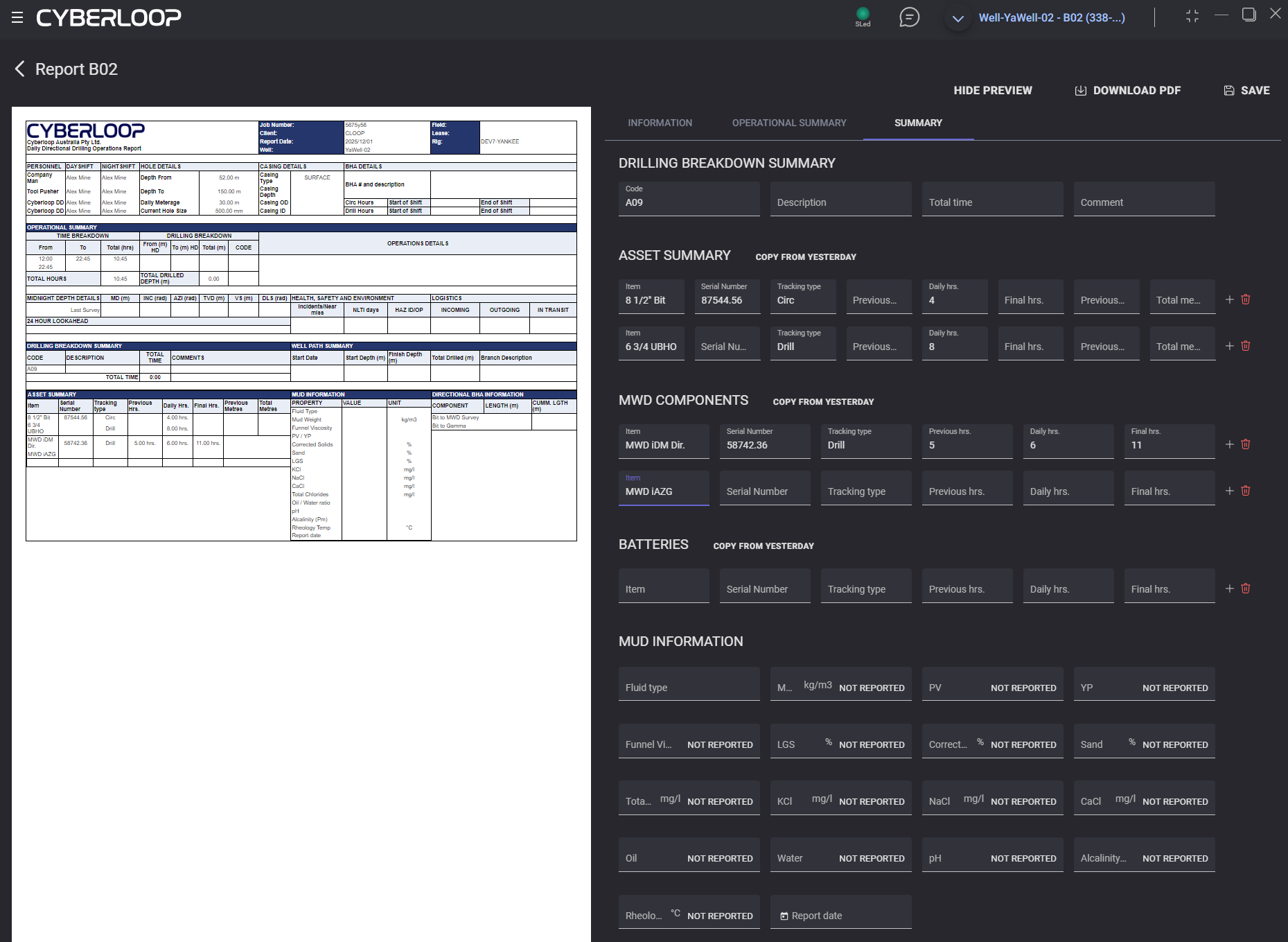
To load report in the PDF it should be saved previously by click on Save option. After saving, click on Download PDF will start downloading of the report to the local machine.